
2025-08-25 @
Angular PWA tutorial part 2 - New version notification
Changelog:
2025-08-27: Added link to GitHub and part 3.
In part 2 of this series, we will take a look at how you can notify your users about a new version of your app being available.
In case you’ve missed part 1 about the setup, you can get up to speed here.
A bit of styling
In the post about the setup, I said we will not spend much time on making the app look good. That said, we’ll add a bit of VERY basic CSS, just so we won’t want to crawl our eyes out every time we look at our app.
Let’s add the following to styles.scss:
:root {
  --background-color: #d7c9c9;
  --primary-color: #071793;
  --on-primary-color: #ffffff;
}

body {
  background: var(--background-color);
}

button {
  background-color: var(--primary-color);
  color: var(--on-primary-color);
  border-radius: 8px;
  padding: 4px 8px;
  margin: 0 4px;
}
We’ve just added a bit darker background and styled our buttons a bit. It’s not pretty, but at least it doesn’t hurt to look at it. Moving forward, we might tweak some things here and there, but we might end up with this being our final form. We’ll see.
Introducing the SwUpdate service
The @angular/service-worker package provides us with a service called SwUpdate. This service lets us communicate with the service worker that is running in the background. With its help, we can subscribe to the versionUpdates observable and react to events emitted by it. We can also manually check for updates with the checkForUpdate method.
There are 5 events we can react to:
VersionDetectedEventNoNewVersionDetectedEventVersionReadyEventVersionInstallationFailedEventVersionFailedEvent
SwUpdate checks for a new version of the app when you start your installed app from the home screen or when you navigate to your app from another address in the browser.
Right now, we are interested in VersionReadyEvent, but you can read a bit more about these here.
Handling VersionReadyEvent
First thing first, I’ll show the implemented code, then we will discuss the new additions to the code.
Update your app.ts to reflect the following:
import { Component, inject, signal } from '@angular/core';
import { RouterOutlet } from '@angular/router';
import { NetworkService } from './shared/network/network';
import { SwUpdate, VersionReadyEvent } from '@angular/service-worker';
import { filter } from 'rxjs';

@Component({
  selector: 'app-root',
  imports: [RouterOutlet],
  template: `
    @if (isNewVersionReady()) {
      <span>🆕 New version available! Please reload the application.</span>
      <button (click)="reload()">Reload</button>
    }
    <h1>Welcome to {{ title() }}!!</h1>
    @if (network.isOffline()) {
      <span>🚫 Offline</span>
    }

    <router-outlet />
  `,
})
export class App {
  protected readonly network = inject(NetworkService);
  private readonly swUpdate = inject(SwUpdate);

  protected readonly title = signal('pwa-tutorial');
  protected readonly isNewVersionReady = signal(false);

  constructor() {
    if (this.swUpdate.isEnabled) {
      this.swUpdate.versionUpdates
        .pipe(filter(event => event.type === 'VERSION_READY'))
        .subscribe((event: VersionReadyEvent) => {
          this.isNewVersionReady.set(true);
        });
    }
  }

  protected reload() {
    window.location.reload();
  }
}
We’ve injected the SwUpdate service. Also, the isNewVersionReady signal was added with the initial value set to false. The only purpose of this signal is to control the appearance of our new version notification in the template, which we’ve also added.
private readonly swUpdate = inject(SwUpdate);

protected readonly isNewVersionReady = signal(false);
@if (isNewVersionReady()) {
<span>🆕 New version available! Please reload the application.</span>
<button (click)="reload()">Reload</button>
}We’ve also added the reload function, which is pretty self-explanatory, it reloads our application:
protected reload() {
  window.location.reload();
}
Now, the interesting part.
First, in the constructor, we check, if service workers are enabled. We don’t want to cause errors if the user disables them in their browser. If that’s the case, they should be able to use our app as a regular webapp. A PWA is still a webapp after all.
constructor() {
  if (this.swUpdate.isEnabled) {
    // ...
  }
}
If this check is passed, then we subscribe to the versionUpdates Observable, but first, we filter the events so we are only reacting if the event was fired to notify us of a new version being ready:
this.swUpdate.versionUpdates
  .pipe(filter(event => event.type === 'VERSION_READY'))
  .subscribe((event: VersionReadyEvent) => {
    this.isNewVersionReady.set(true);
  });
If the new version is ready, we set isNewVersionReady to true and our template does the rest. Rebuild your app and restart the server:
ng buildthen
npx http-server -p 8080 -c-1 dist/pwa-tutorial/browserThe next time you start the application from the home screen, after a few seconds, you should see the following:
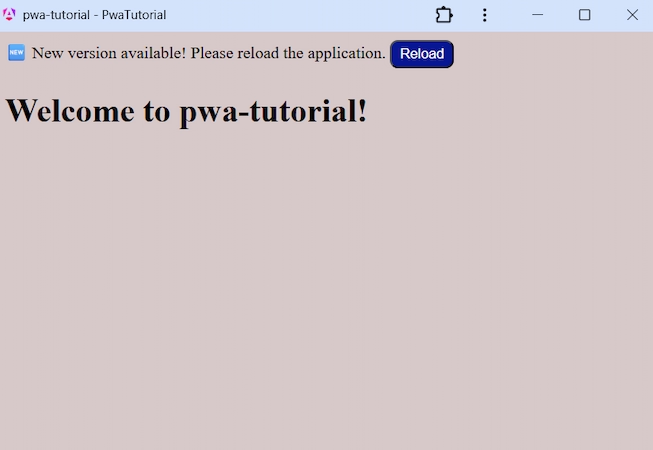
If the user clicks the reload button, the app will reload and they instantly have access to the new version. If they choose not to reload, the new version was still downloaded in the background and after they refresh or they open the app the next time, the new version will be loaded.
One important note is that you have to change something in your application that changes the build output to register it as a new version, so make sure something changes in your html, css and javascript before you create a new build for the notification to work.
The complete code for this chapter is available here.